
Appearance
How to withdraw SPACE from Final Autoclaim?
In this step-by-step guide, you will learn how to withdraw the Space Tokens held on your Final Autoclaim account to your own Web3 wallet.
Before you start: get a Web3 wallet address
SPACE is compatible with any Web3 wallet. These are the wallets that support it:
We fully recommend using Rabby, since that's the most secure and the user experience is great. All other EVM-compatible wallets can be used.
INFO
New to Rabby? Watch this video, or follow this tutorial.
1. Link your SPACE address on Final Autoclaim
INFO
If your SPACE address is already linked on Final Autoclaim, go straight to step 2.
A. Copy your deposit address
Open your wallet and copy your deposit address.
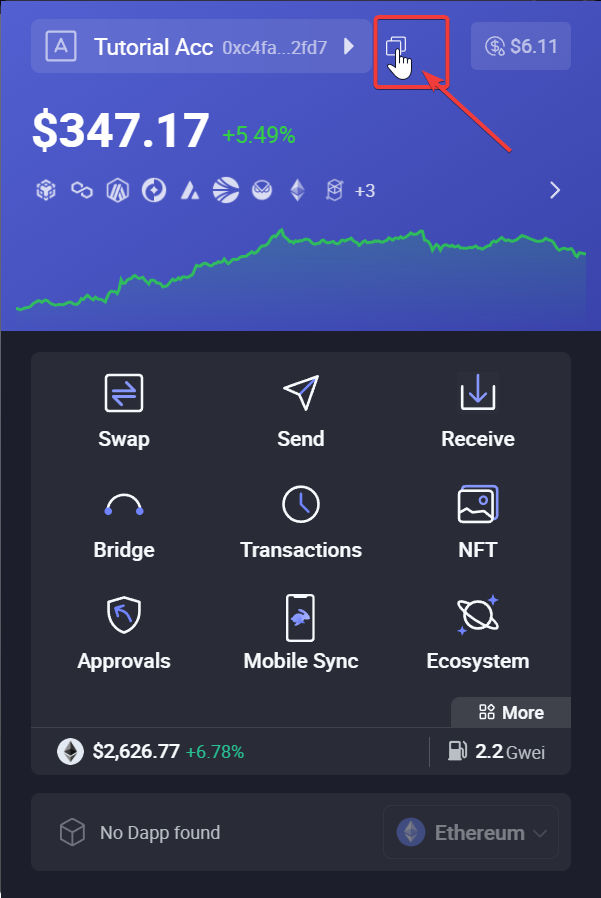
In Rabby, click here to copy your address.
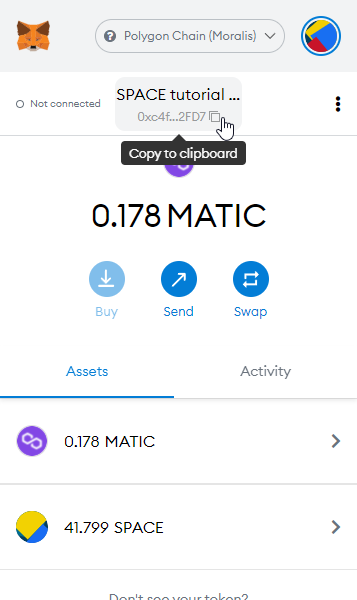
The same step in MetaMask.
B. Paste it on Final Autoclaim
Go to the Final Autoclaim addresses linking page. Paste your address in the SPACE input, then scroll down and click the UPDATE button.

Enter your address in the SPACE address input.

Click the UPDATE button.
C. Confirm by email
Check your mailbox: you must have received a confirmation mail to validate your address change. After clicking the confirmation link in the mail, you get this message.

Your address change is confirmed.
2. Withdraw your SPACE
A. Open your balance page
Go to the Final Autoclaim balance page, open the search box and search for SPACE.

Open the search box.
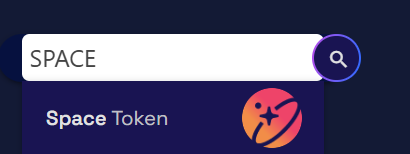
Search for SPACE.
You now see your SPACE internal balance. Click the Withdraw button.
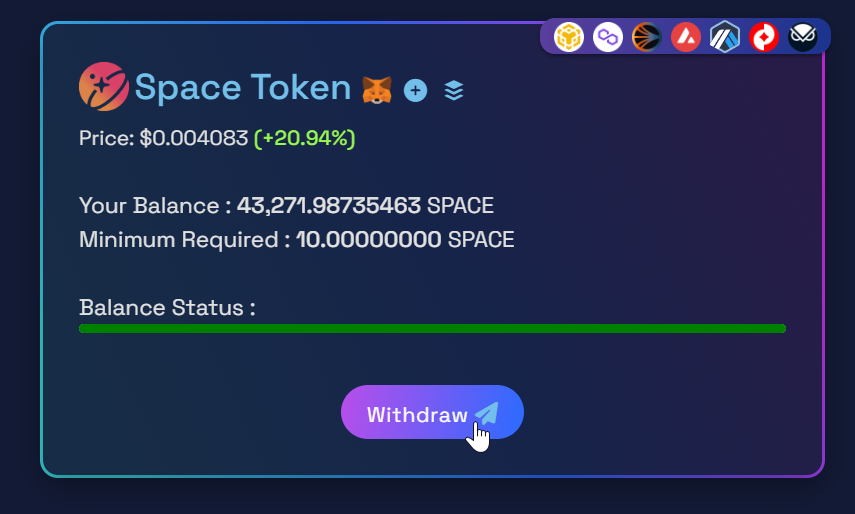
Click the Withdraw button.
B. Choose the withdrawal network
The withdrawal method defaults to BNB Smart Chain. Click it to pick another network.
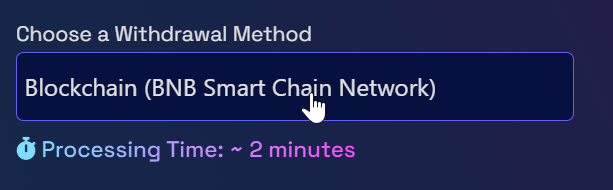
Click here to change the withdrawal method.
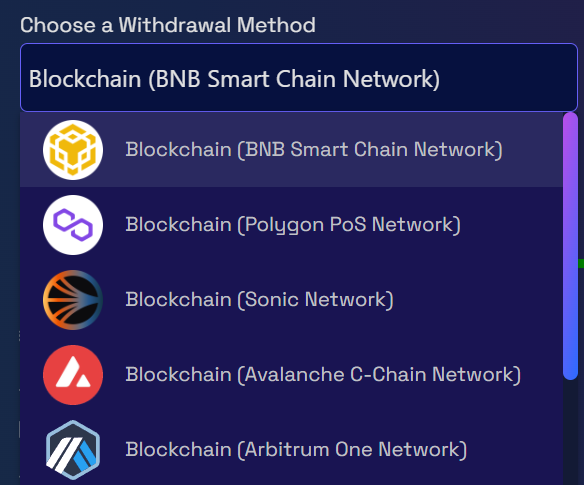
Select the network that you prefer.
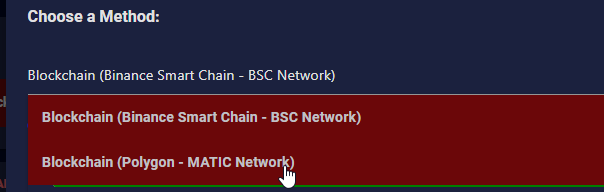
Selecting Polygon as the withdrawal method.
WARNING
Every network supported by SPACE works with any EVM wallet, but the minimum required to withdraw and the withdrawal fee differ from one network to another. Pick a cheap network to keep more of your SPACE.
For example, on Gnosis Chain the minimum and the fee are both very low.
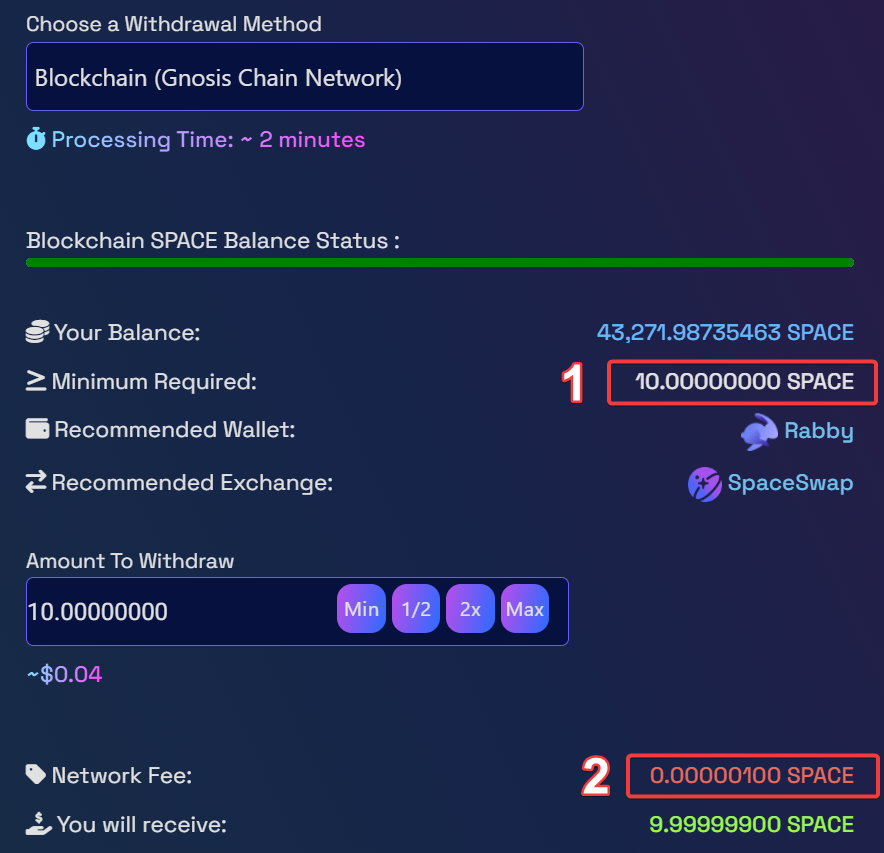
The minimum required and the fee, shown for Gnosis Chain.
C. Enter the amount and request the payment
Edit the amount that you want to withdraw.
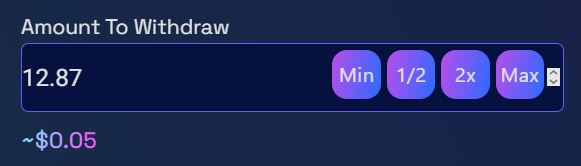
In this example we withdraw 12.87 SPACE on Gnosis Chain.
Pass the captcha, then click the Request button.
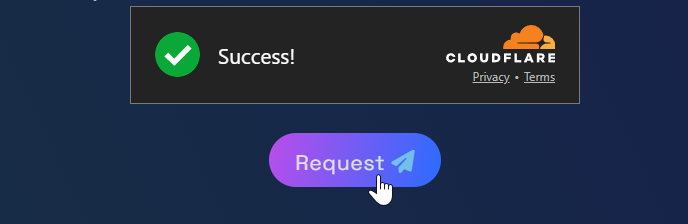
Pass the captcha, then request the payment.
3. Check that you received it
Done! It takes a few minutes before your SPACE reaches your wallet — around 2 minutes on Gnosis Chain, and up to 5 minutes depending on the network.
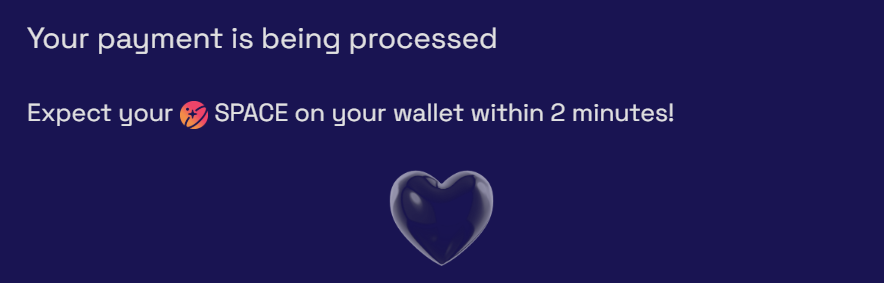
You must see this confirmation after requesting your payment.

The payment is sent.
Open your wallet and click the arrow icon to see your balance.
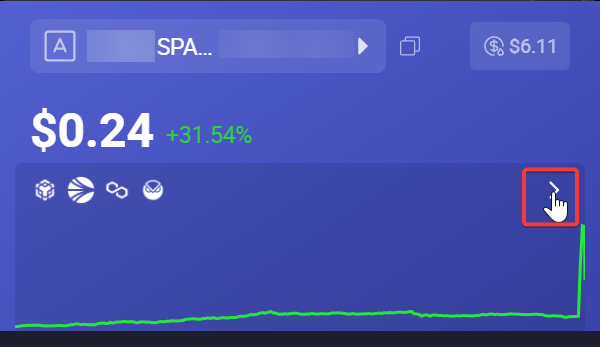
Click the arrow icon to see your wallet balance.
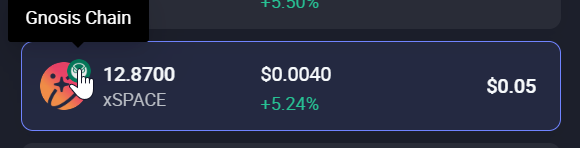
The 12.87 SPACE arrived on Gnosis Chain.
TIP
SPACE not showing up in your wallet? The tokens are there — only the display is missing. See How to display SPACE in your wallet?