
Appearance
Add liquidity on Polygon
Uniswap V3 liquidity pools allow users to trade SPACE with other assets on Polygon. In this step-by-step guide, you will learn how to provide liquidity to the POL / xSPACE pool with our SPACE Liquidity UI.
INFO
New to liquidity pools? Read How to Add Liquidity ? first. It explains what a pool is, why the fee tier and the full range matter, and what SPACE LP bonuses are.
WARNING
This pool uses xSPACE only. The old SPACE (Multichain version) is not compatible with it.
If you don't hold xSPACE on Polygon yet, you can buy it on SpaceSwap.
Before you start
You need xSPACE and POL in your Web3 wallet on the Polygon network.
We recommend using Rabby.io as a Web3 wallet, since that's probably the most secure and the user experience is great.
1. Open the SPACE Liquidity UI
Go to https://liquidity.spacetoken.tech/?chainId=137
2. Connect your Web3 wallet
Connect the Web3 wallet that contains your xSPACE and POL on Polygon.

Click the Connect Wallet button.
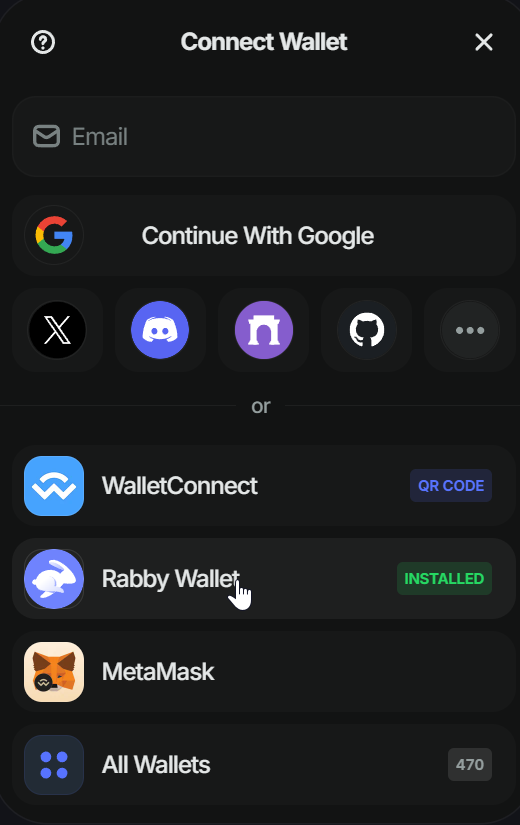
Select your wallet.
If you use Rabby, the UI will automatically switch to the Polygon network.
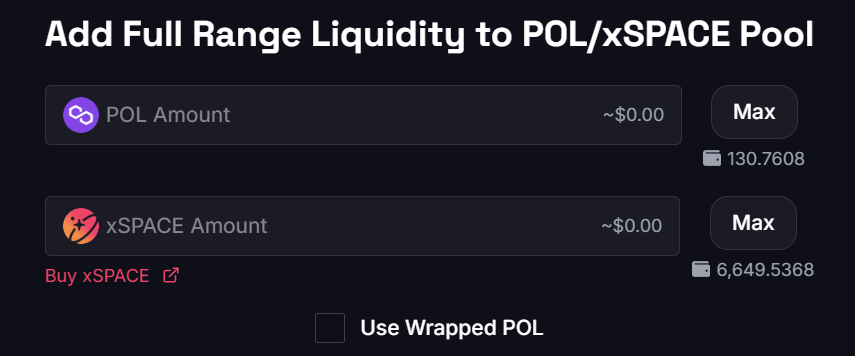
Once your wallet is connected, you must see that xSPACE and POL are pre-selected.
3. Enter the amount you want to add
You need to provide xSPACE and POL in a ~50/50 ratio (for example, $10 of xSPACE and $10 of POL).
Clicking the Max button will automatically fetch the maximum amount that you can add to the pool, according to your xSPACE and POL balances.
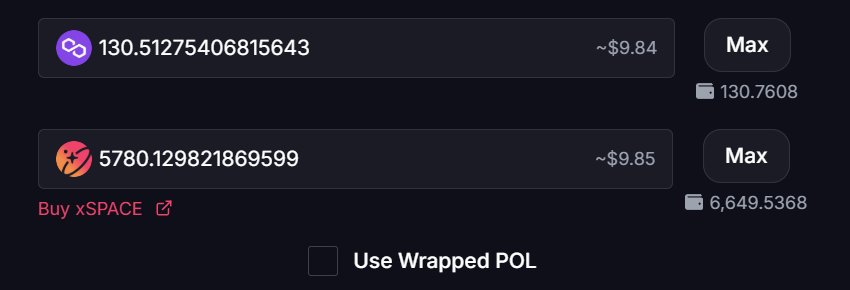
The UI will automatically ensure that the 50/50 ratio is respected.
4. Approve xSPACE
Approve xSPACE so the token can interact with the pool. This requires you to sign a transaction on your Web3 wallet; don't worry, it is safe.

Click the Approve xSPACE button.
5. Confirm the approval transaction
Sign the approval and wait for the network confirmation.
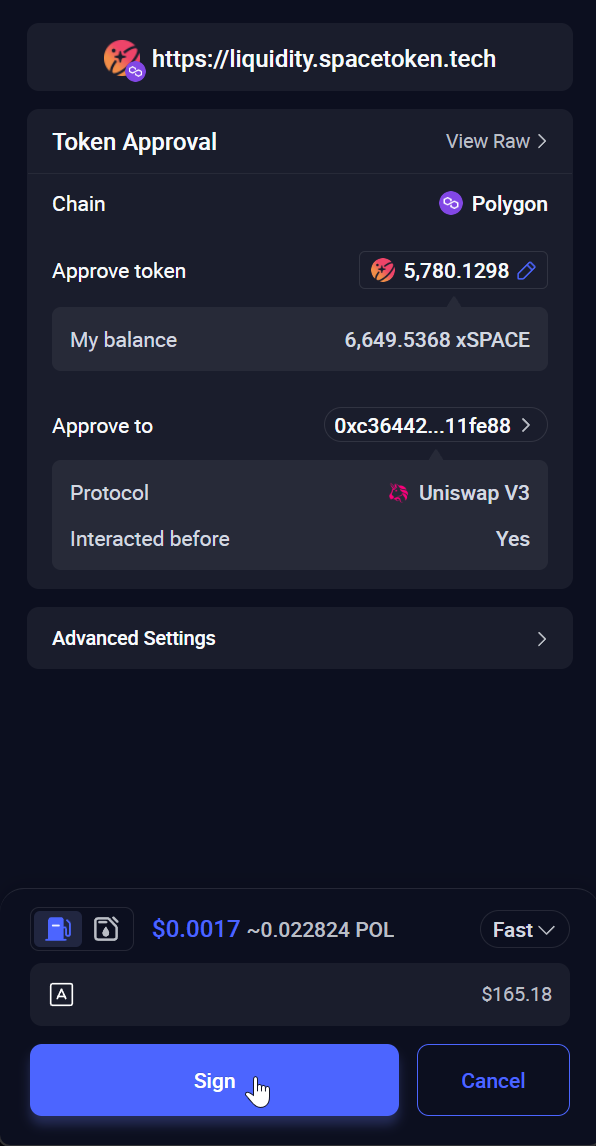
Click the Sign button to approve xSPACE on Polygon.

After some time, you will see that the transaction is confirmed.
6. Click the Add Liquidity button

Click the Add Liquidity button.
7. Sign the transaction
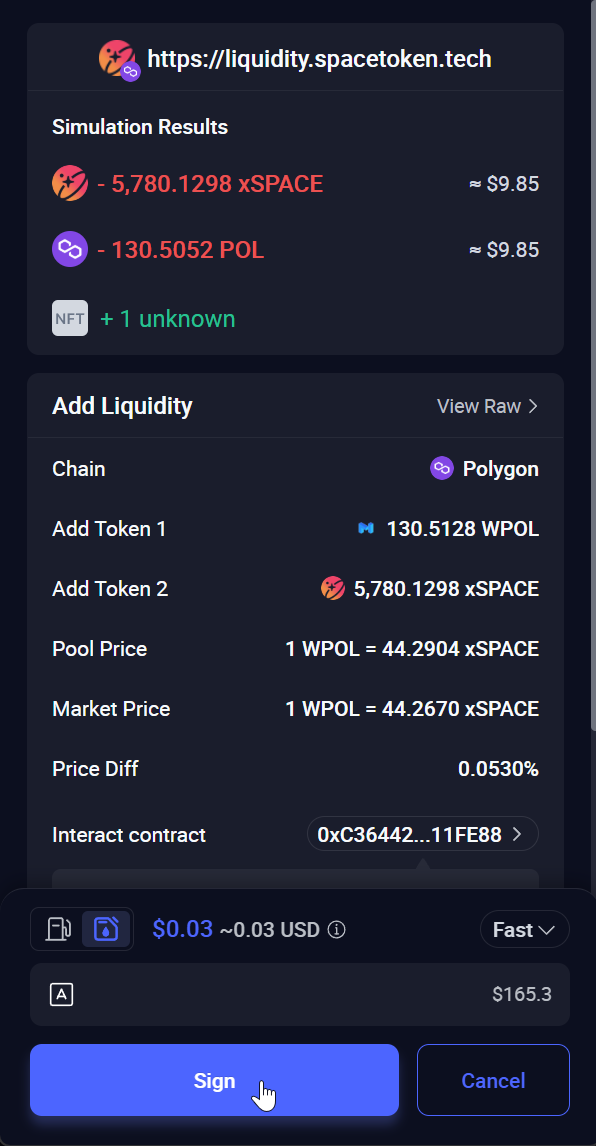
If you use Rabby, just click the Sign button.
After some time, we will confirm that you succeeded in adding liquidity.
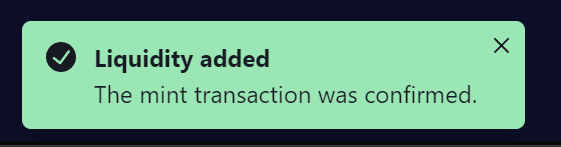
The mint transaction is confirmed.
Check your position
Click the Your Positions button to see your liquidity position.

Click Your Positions.
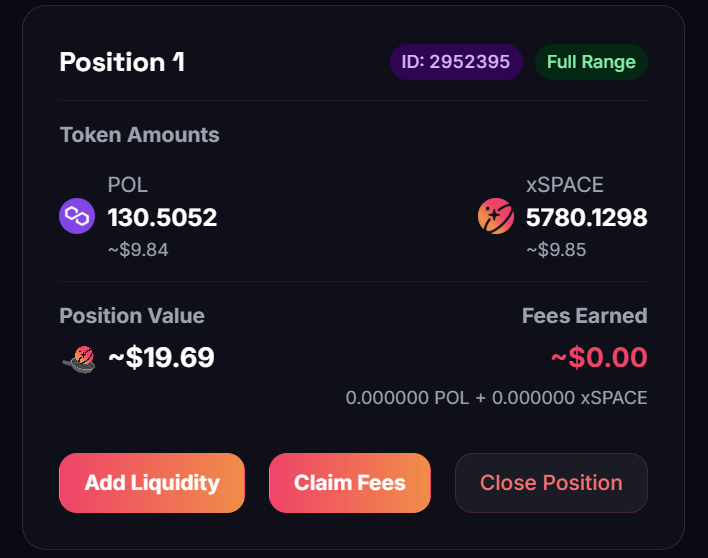
This position contains ~5780 xSPACE and ~130.5 POL, which corresponds to around 19 SPACE LP.
Manage your position
Bookmark https://liquidity.spacetoken.tech/positions. From there you can, at any time:
- Claim Fees — collect the trading fees your position has earned. The position stays open and keeps earning.
- Add Liquidity — top up a position that is already live, instead of opening a second one.
- Close Position — withdraw both tokens together with the fees earned, in a single transaction.
INFO
If you come back to the add-liquidity page while a position is already open, the UI detects it and shows Existing position detected. Liquidity will be added to it. The button then reads Increase Liquidity, so your liquidity is concentrated in that one position instead of being spread across several.
🎉 Congratulations!
You've successfully added xSPACE and POL to the Uniswap V3 liquidity pool on Polygon.
- Refresh your SPACE LP balance on the Space Bonuses page of Final Autoclaim to enjoy the bonuses.
- Once your LP balance is refreshed, activate the xSPACE LP staking pool to enjoy a high APR.
INFO
See how much your liquidity earns you: SPACE LP bonuses