
Appearance
How to display SPACE in your wallet?
Your SPACE belongs to your wallet address as soon as the transaction confirms. If you cannot see it, only the display is missing — nothing is lost. This page shows how to make SPACE visible in MetaMask and in Trust Wallet.
INFO
Adding a token never moves your funds. It only tells your wallet which contract to watch.
Does your wallet find SPACE on its own?
| Wallet | What it does |
|---|---|
| MetaMask | Finds SPACE by itself on most networks, once Autodetect tokens is on. If SPACE does not appear, import it manually. |
| Trust Wallet | Never finds SPACE by itself. You import it by hand on every network. |
MetaMask
Check the Autodetect tokens setting
Open Settings, then Assets, and look at Autodetect tokens.
- Wallets created recently have it on by default.
- Older wallets have it off until you switch it on yourself.
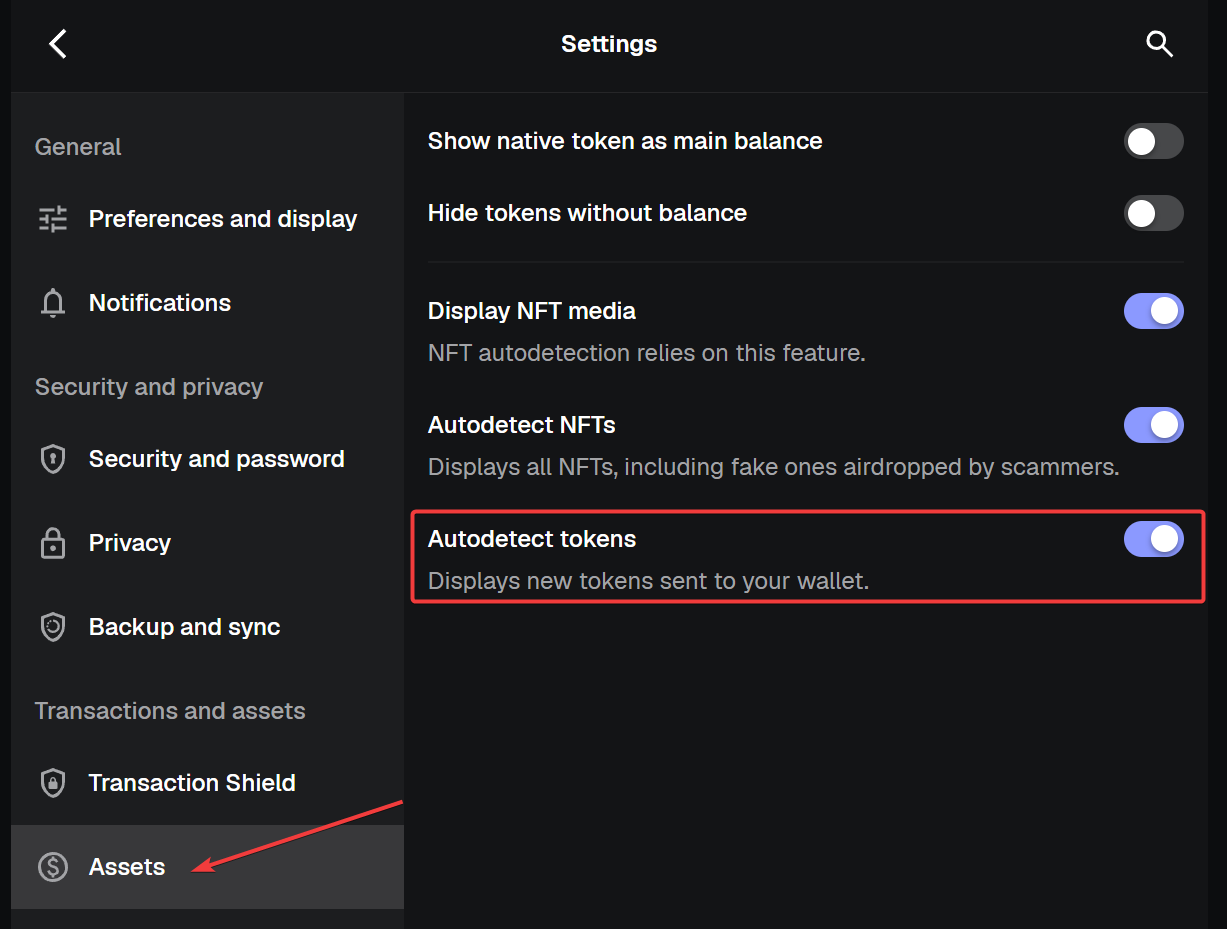
Check that Autodetect tokens is on, under Settings → Assets.
With the setting on, SPACE may appear automatically after your balance arrives. If it does not, use the manual import steps below.
WARNING
If autodetection is unavailable for your network, import SPACE by hand with the steps below.
Import SPACE by hand
- Switch MetaMask to the network your SPACE is on.
- Open the Tokens tab and click Import tokens, below your assets.
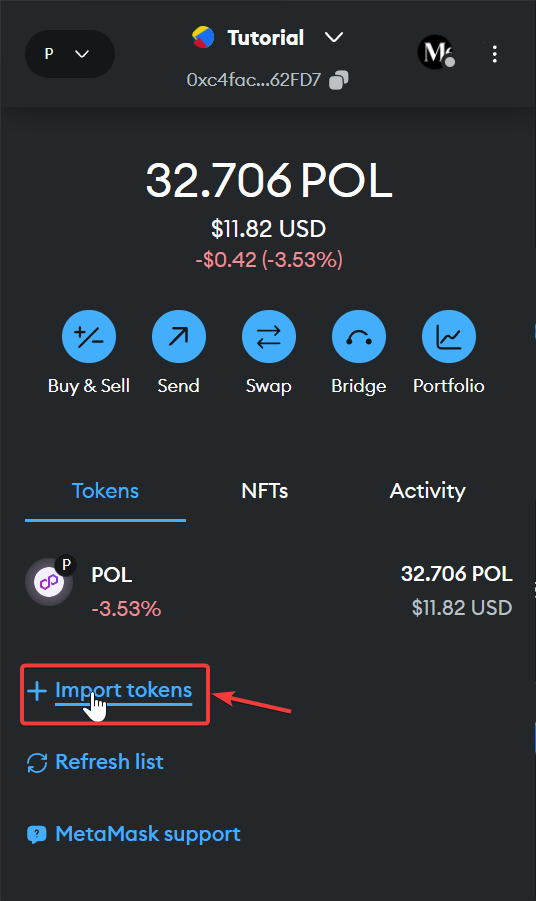
Click Import tokens, below your assets.
- Open the Custom token tab.
- Paste the contract address for that network into Token contract address, taken from the contract reference. Token symbol and Token decimal fill in by themselves.
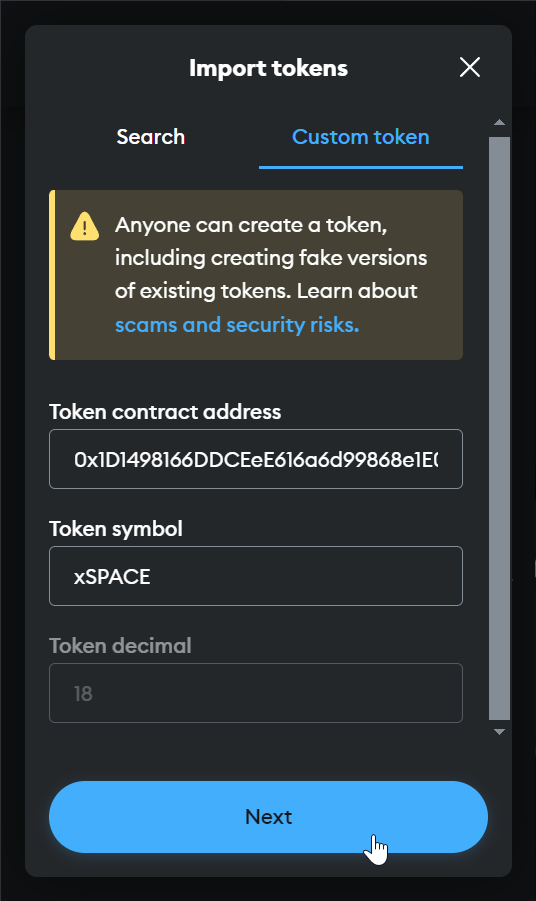
Paste the contract address, then check the symbol and the decimals.
- Click Next, then Import.
WARNING
Some token lists show the symbol SPACE where the contract reference uses xSPACE. Search by contract address rather than by symbol.
Trust Wallet
Trust Wallet only displays tokens from its own curated list, and SPACE is not on that list. You have to import SPACE by hand on every network.
- Open Trust Wallet, scroll to the bottom of your crypto list and tap Manage crypto.
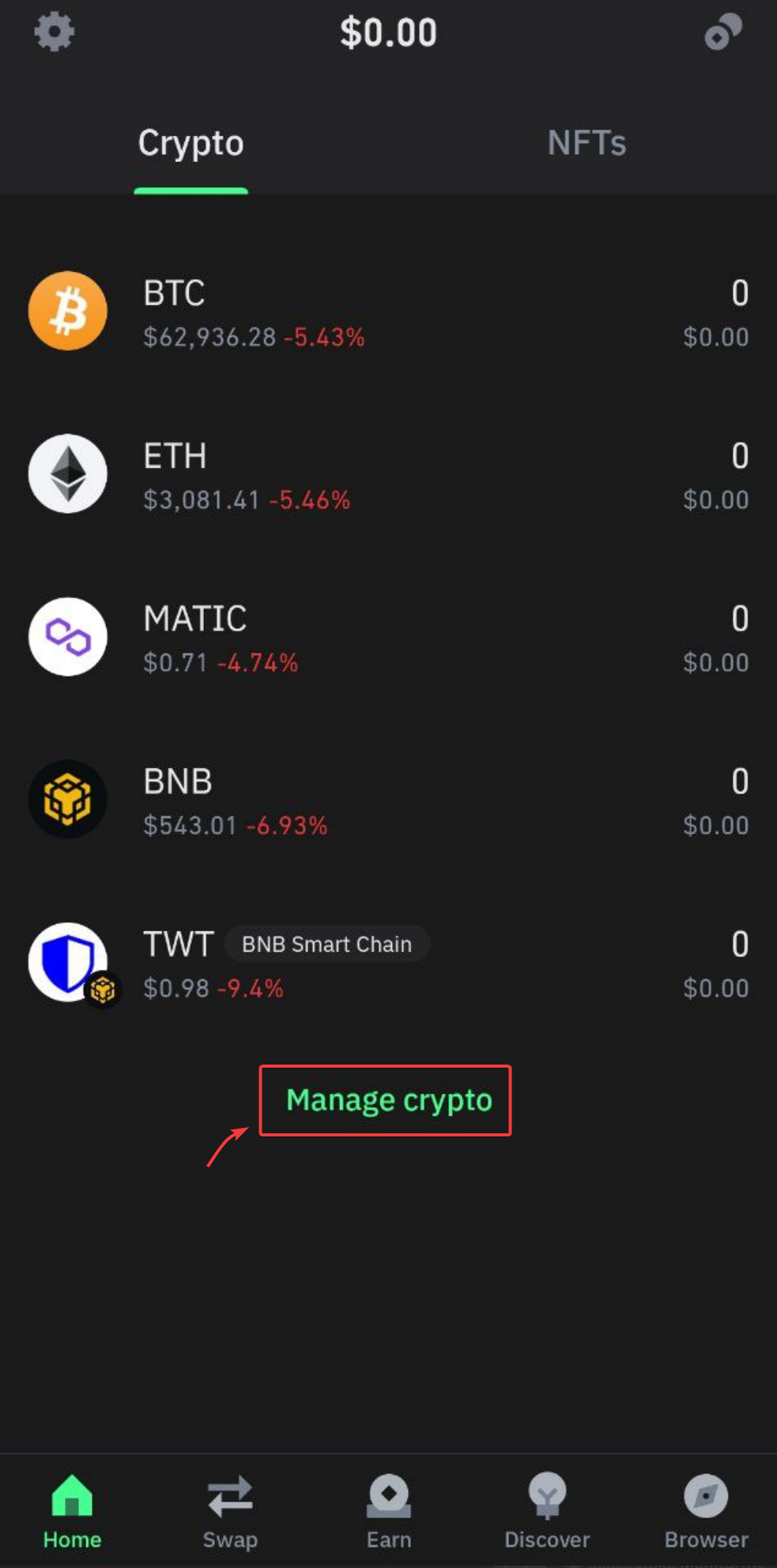
Scroll down and tap Manage crypto.
- Tap the + button in the top right corner. The Import crypto screen opens.
- The Network field is set to Ethereum by default. Tap it to change it.
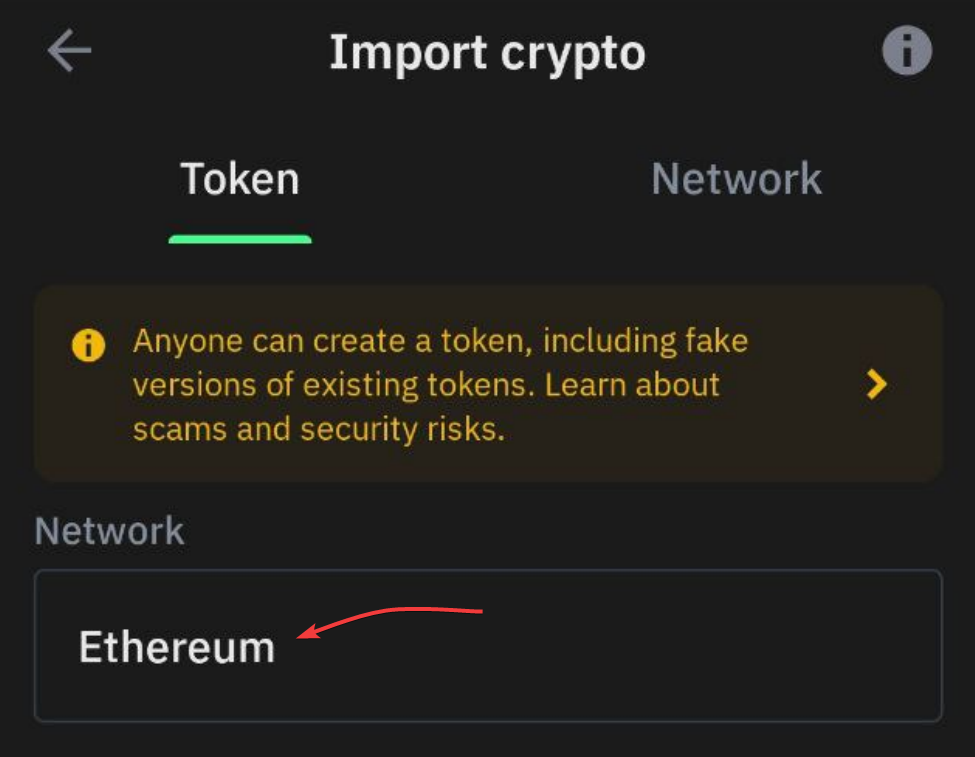
Ethereum is selected by default. Tap it to pick another network.
- Search for the network your SPACE is on, then select it.
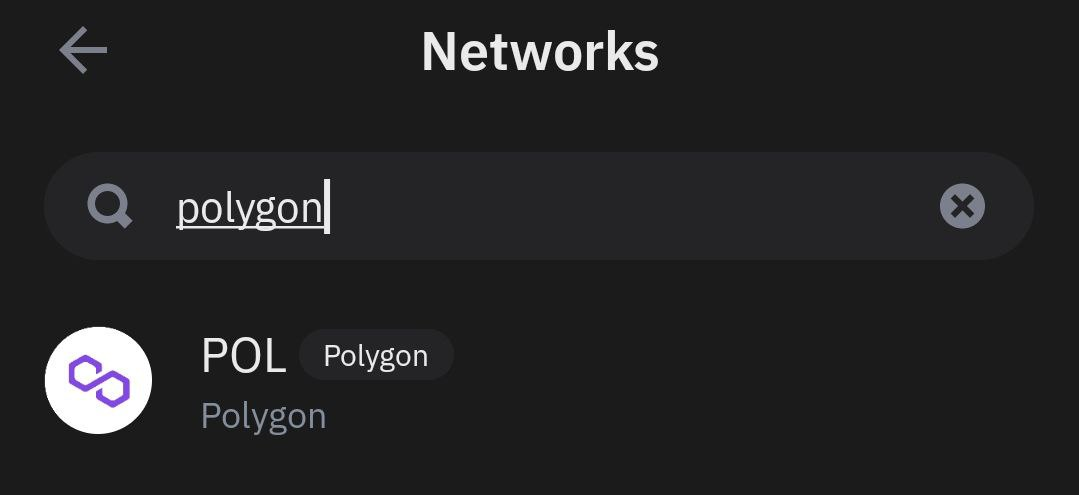
Search the network by name, then select it. Polygon is shown here as an example.
- Fill in the form, then tap Import:
- Address — the contract address for that network, taken from the contract reference.
- Name —
xSpace Token, orSpace Tokenon BNB Smart Chain. - Symbol — the symbol shown for that network in the table below:
xSPACE, orSPACEon BNB Smart Chain. - Decimals —
18.
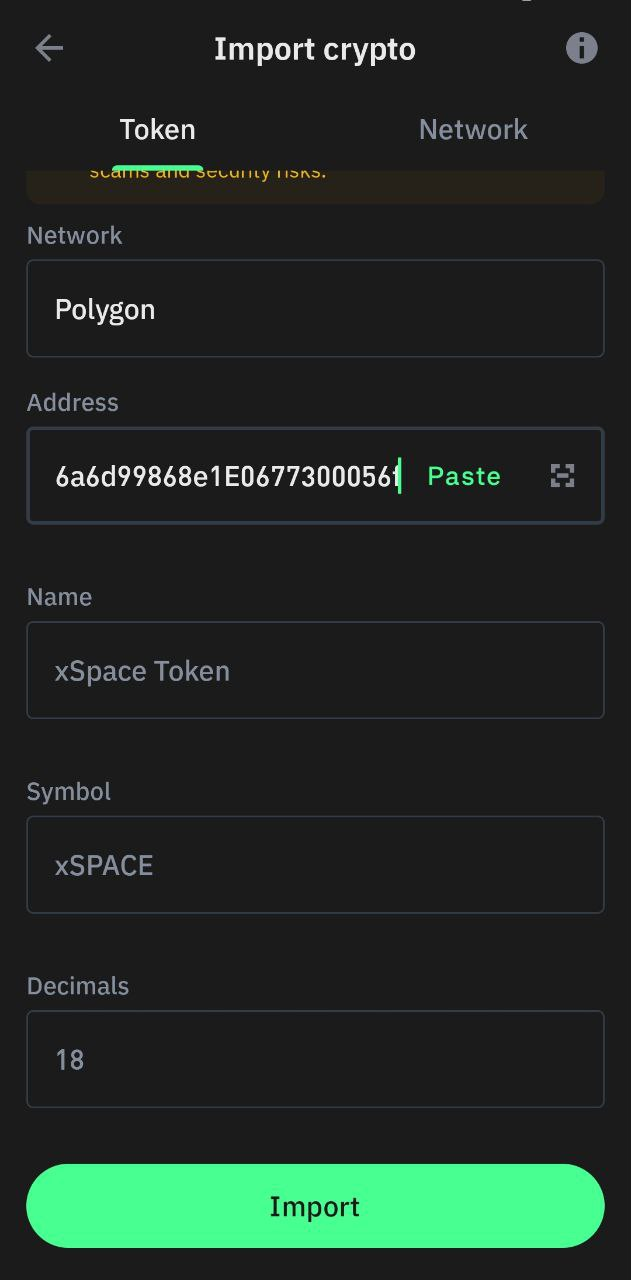
Fill in the four fields, then tap Import. Polygon is shown here as an example.
INFO
Trust Wallet does not fill these fields for you. Type them yourself, and take the address and the symbol from the table below.
Contract addresses
Use the address of the network your SPACE is on. All of them use 18 decimals.
See the supported networks and token contracts reference for the correct contract address, symbol and decimals.
TIP
Now that your SPACE is visible, you can put it to work: How to Add Liquidity ?